

Working with Kaltura Videos
Kaltura videos can be embedded on a web page using our shortcode block, but when embedding a video from Kaltura, it’s important to know which embed code to use.
The embed code that is accessed directly from the video will result in a video player that is scaled out of proportion, with the transcript taking up most of the visible area
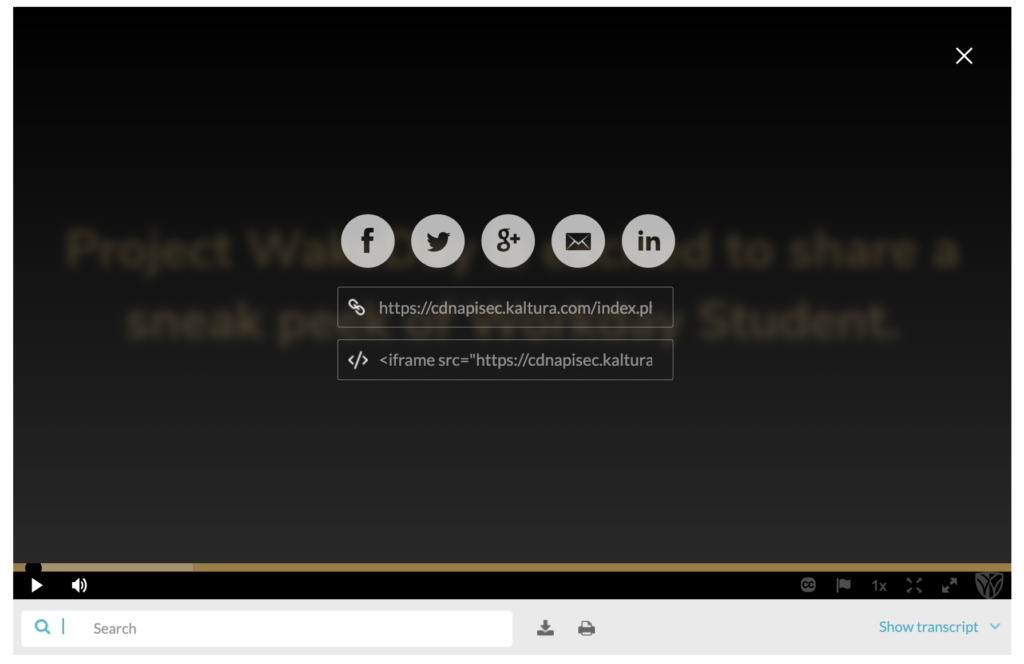
You can see that in this example:
Embed the Video
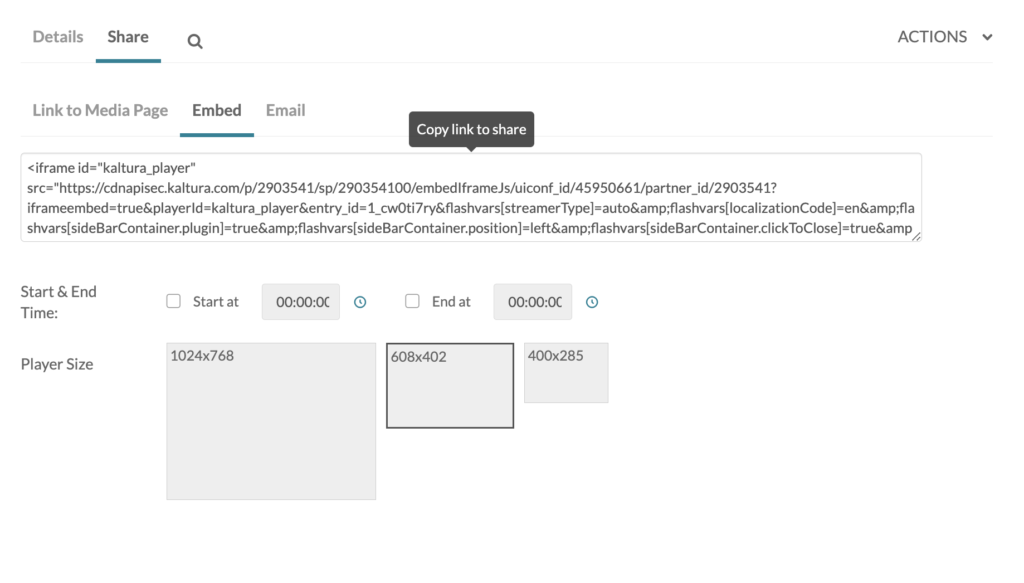
Instead of using Kaltura’s player, it’s best to add the video and transcript to your web page independently.
To get the correct video embed code, scroll down the Kaltura page to the Details section. Click Share and Embed and use the iframe code that appears in the text box. One copied, this code can then be placed in a shortcode and added to the page.
Include the Transcript
Kaltura allows you to download a transcript by clicking the download icon that appears below the video:

Open the download file into a text editor and copy the contents. Create an accordion or details block and paste the transcript inside. We’ve added an example below.
View Transcript
Project WakeDay is excited to share a sneak peek of Workday Student. This video will introduce you to faculty-focused topics including grading, managing courses and viewing advisee records. What will my advisee records look like in Workday? Current Classes. Academic Progress. What we’re excited about… Faculty and students having the same profile view to support collaboration when evaluating academic progress How will I manage my courses in Workday? Dashboards provide easy, co-located access to tasks and reports in Workday. The Faculty Dashboard will support your Workday experience. The Faculty Dashboard will include… Reports: Select “My Faculty Schedule” to see all your course sections for a given term; Select “WFU – Faculty Report” to see information about your class roster details. You can opt to view one or multiple sections. Tasks & Activities: Select “Assign Midterm Grades” to open grade entry for midterm grades; Select “Assign Final Grades” to open grade entry for final grades; Select links to access important information outside of Workday, such as Canvas and the Academic Bulletin. Select “View My Faculty Schedule.” This page displays your course sections for a given term. Select “WFU – Faculty Report to view course roster details. Click here to update search parameters — You can even select multiple sections to view enrollments simultaneously. Select “Assign Midterm Grades” or “Assign Final Grades” to enter grades. Stay tuned for a readiness session in Spring 2024 focused on grading functionality. Select “Canvas” to go to your Canvas website. What we’re excited aboutÉ Instructors will be able to access everything they need to manage courses — from rosters to grading — in one location. How do I find course sections in Workday? What we’re excited about… Faculty and students will be able to see all courses offered in a semester and filter results by subject, modality and more. What will I see in future Workday sneak peeks? 1) View course schedules and find course information 2) Check enrollments and access course rosters 3) Enter and edit grades 4) View advisees, student info and academic progress 5) Approve registration overrides. Do you have questions or feedback about Project WakeDay? Contact the team at wakeday@wfu.edu. You can also receive updates through The Word on WakeDay newsletter. Find the link to subscribe on the project website — wakeday.wfu.edu. We’ll be back soon with additional Workday Student videos. Thanks for watching!