

What’s New in WordPress 7 – Icons, Tabs, Playlists and More
A few things in the editor have moved, and a few new tools have arrived. Everything you have already published stays exactly as it is.
WordPress, the system behind most sites on the wfu.edu network, moved from version 6.9 to version 7.1 today. If you’re using the WFU WordPress theme, your pages, posts, images, menus and forms all carried over untouched. What changed is the editing screen around them.
The short version
- Settings boxes that used to sit below the editor are now in one panel at the bottom of the screen, and it starts closed.
- Heading levels are easier to change than before. Choose the Level for structure and the Size for appearance.
- Fields for WFU blocks appear in the right-hand sidebar.
- New blocks to try: Icon, Tabs and Playlist.
- Blocks with new features: Accordions, Cover and Gallery.
- Nothing you have published has changed, and no content was lost.
Some settings boxes moved to the bottom
Boxes that used to appear underneath the editor now live together in a single panel at the bottom of the screen. The panel starts closed, so at first glance, those settings look like they’re gone. Click the bar at the very bottom of the editor to open it, and it will stay open while you work.
Affected items:
- WFU Authentication, which password protects a whole page
- Blog Page Options, which appears only on pages using the Story Archive template
- Staff List pages
- Wake Communities
- Yoast SEO
If a setting you rely on appears to be missing, open this panel before reporting it.
Heading levels are easier to change … and easier to get wrong
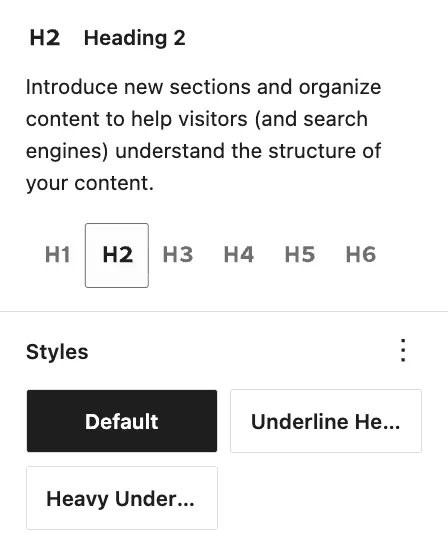
Selecting a heading block now shows the heading levels as a row of buttons you can click straight through, and the text resizes as you go. That makes it tempting to choose a heading level based on how large the text appears.
Heading levels are about structure rather than size. Screen readers use them to build a list of a page’s sections so a visitor can jump between them, and a page that runs H2, then H5, then H3 reads as though sections are missing or oddly nested. Your page title is already the H1, so your content starts at H2 and works down one level at a time.
When a heading is the right level but the wrong size
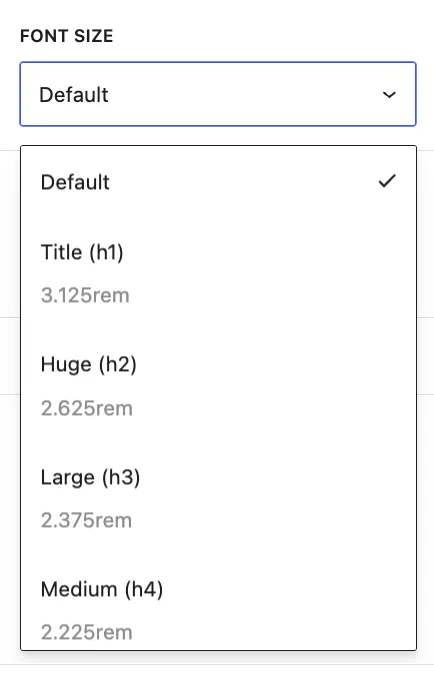
Change the size, not the level. The size list in the block settings runs from Title (h1) down to Tiny (h6), and each one matches the look of its corresponding heading level without changing the page structure. Choose the correct level, then choose the size that looks right.
Choosing a Heading Level is for page structure. Most pages will start with an H2.
Adjust the size of your Headline by selecting a Font Size
To check a whole page at once, open the Document Overview from the icon at the top left of the editor and choose the Outline tab. It lays out every heading on the page in order.
WFU block fields are in the sidebar
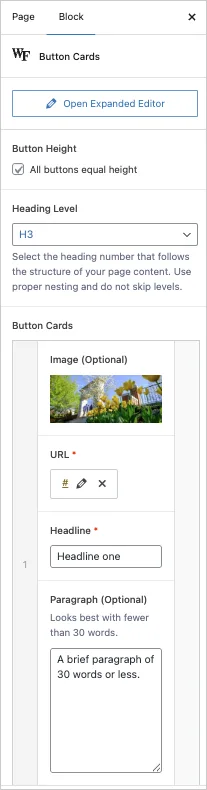
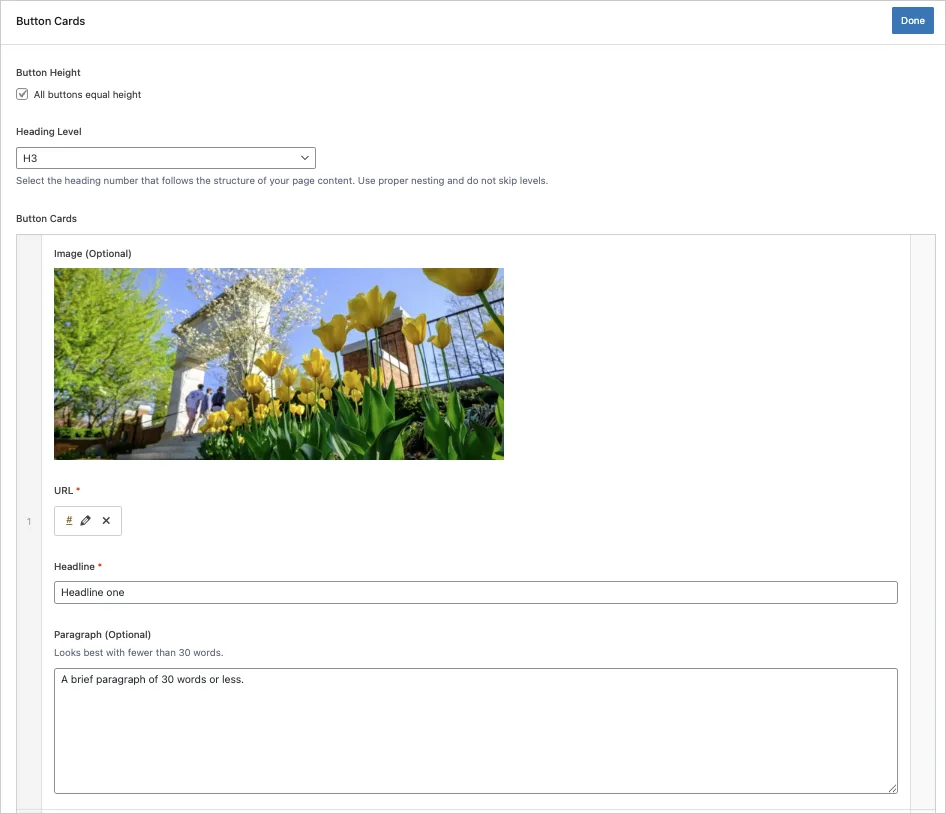
Thirteen of the blocks built by the WFU team now show their settings in the right-hand sidebar rather than inside the block itself. Select the block, and its fields appear beside the page.
This one arrived with the September update rather than with WordPress 7, so it may already be familiar. It is listed here because the two changes together make the editor look quite different from what is shown in the screenshots in our older guides.
Basic Sidebar
Expanded Editor
Three new blocks worth knowing about
WordPress 7 brings a number of new blocks. These are the three you are most likely to find useful.
Icon Block
Places a single icon on the page. Icons can be resized without losing quality and changed to colors within the WFU brand palette.
Icon Block Example
There are many new icons to choose from.
Icon Block Example
You can customize them with a color option.
Tabs Block
Arranges content into tabbed panels with one panel open at a time, launching in two styles. It suits content a reader chooses between, such as requirements that differ by applicant type.
Header for Tab One
lorem ipsum dolor sit amet consectetur adipiscing elit ad repellendus qui possimus in dolorem et deserunt in assumenda nostrud aliqua eiusmod fugiat ducimus nam et dolorum in minim omnis occaecat provident mollitia vel lorem tempore non quos placeat ducimus laboris laboris non enim laborum in cumque est facere occaecat nostrud
Header for Tab 2
lorem ipsum dolor sit amet consectetur adipiscing elit ad repellendus qui possimus in dolorem et deserunt in assumenda nostrud aliqua eiusmod fugiat ducimus nam et dolorum in minim omnis occaecat provident mollitia vel lorem tempore non quos placeat ducimus laboris laboris non enim laborum in cumque est facere occaecat nostrud
Another Tab
lorem ipsum dolor sit amet consectetur adipiscing elit ad repellendus qui possimus in dolorem et deserunt in assumenda nostrud aliqua eiusmod fugiat ducimus nam et dolorum in minim omnis occaecat provident mollitia vel lorem tempore non quos placeat ducimus laboris laboris non enim laborum in cumque est facere occaecat nostrud
Avoid this for anything every reader needs. Content inside a closed tab is easy to miss and will not be found when a visitor searches the page using their browser’s find command.
Playlist Block
Plays a series of audio files from your media library as a single list, with track titles and artwork.
New functionality for existing blocks
A few of our existing blocks have new features to explore
Accordions
Have a new style option to match the new Tabs. In addition to the default gray, we’ve added a more modern white option.
New clean style
This is using the new “white” style option
Cover Blocks
Inserting a background video URL is a new option for the Cover block.
A YouTube Video Background
Gallery
Photo galleries now function as a slideshow when Enlarge on click is selected for the whole Gallery. Use your Left and Right arrow keys to navigate or click the small arrow indicators.


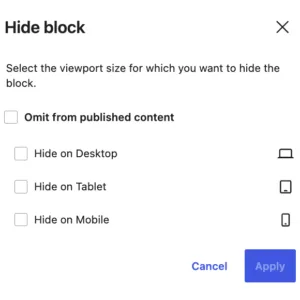
Showing and hiding blocks by device
Every block now has a setting for which screen sizes it appears on, so you can show one version of a section on phones and another on desktop.
Use sparingly. A block hidden on phones is hidden from more than half of our visitors, and content that exists on only one device is easy to forget when the page is next updated.
If you have any questions or encounter anything unexpected, please let us know through the Web Request Form.
Categories: Deployment, Functionality Change, New Feature