Icons
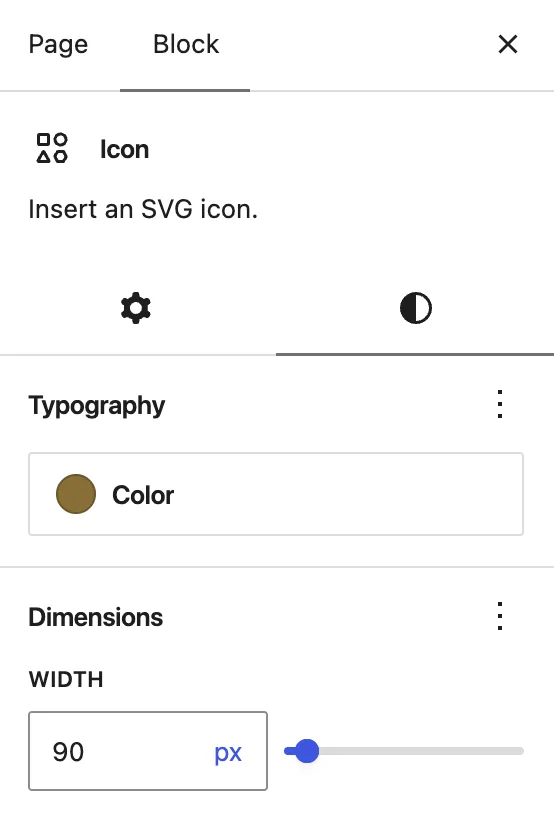
The Icon Block allows you to add decorative icons to your pages. Icons can be resized without losing quality, and their colors can be changed using the WFU brand palette.
Detailed instructions on adding blocks can be found on Building a Page.
Icon Example
Lorem ipsum dolor sit amet, consectetur adipiscing elit. Morbi in felis suscipit, laoreet felis vitae, placerat leo.
Icon Example
Lorem ipsum dolor sit amet, consectetur adipiscing elit. Morbi in felis suscipit, laoreet felis vitae, placerat leo.
Icon Example
Lorem ipsum dolor sit amet, consectetur adipiscing elit. Morbi in felis suscipit, laoreet felis vitae, placerat leo.
Block Toolbar
Each block has its own block-specific controls above in the editor that allow you to manipulate the block right in the editor. The Icon Block offers the following options in its toolbar:
- Transform (convert to another content type)
- Mover Handle (six dots for grabbing and up and down arrows)
- Alignment Options (wide width and full width options are available)
- Choose icon
- More options under the three dots

Icon Library
When you click “Choose icon,” you can browse the available icons in our library.
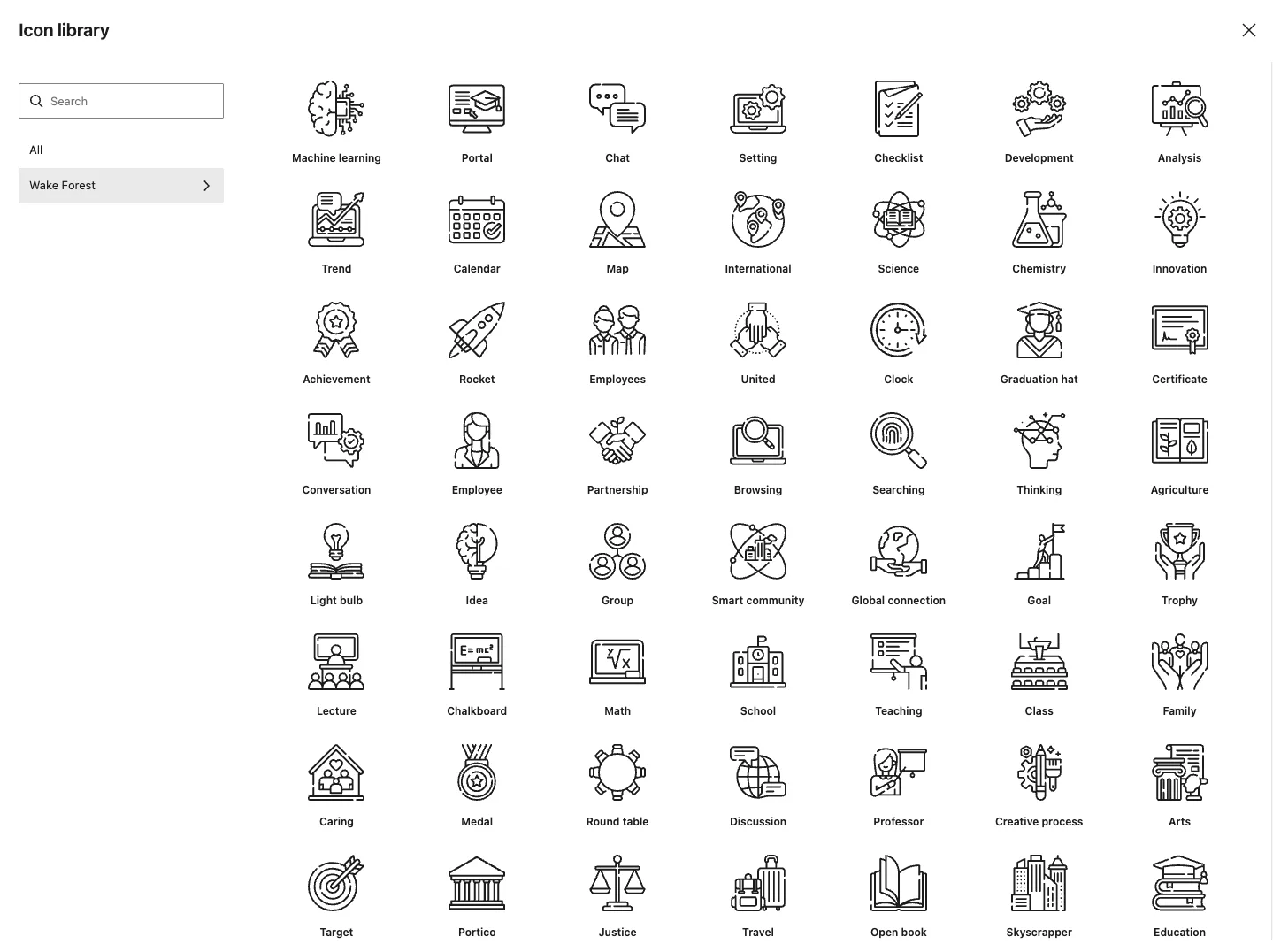
NOTE: We’ve selected a variety of useful icons, all of them from Flaticon’s style “Special Lineal
by Magnific“. You can also browse Flaticon and request an icon to be added to the block, or download and use an icon on your site (as a regular image) under Wake Forest’s Flaticon license.
Block Settings
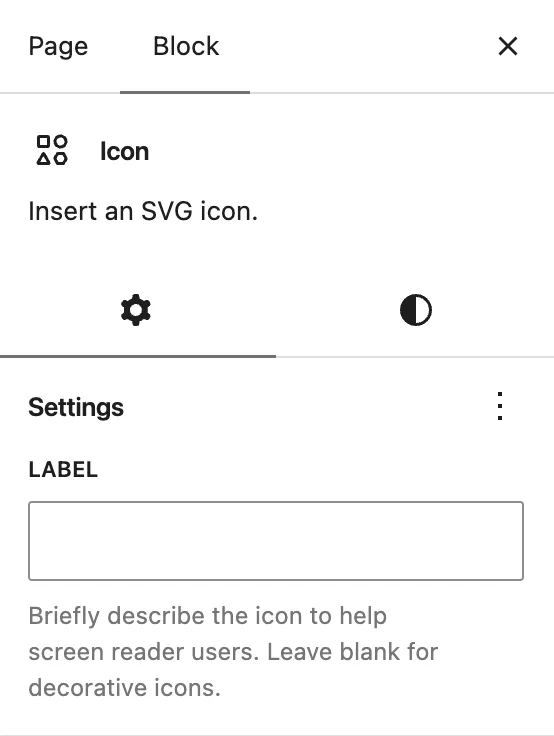
Under “Block” in the right sidebar, you will find the Settings tab to add a “Label” for screen readers. Leave it blank for decorative icons. See the W3C Alt Text Decision Tree for guidance.
In the Styles tab, you can set the color and size of the Icon.