Tabs
The Tabs Block lets you organize related content into sections that visitors can switch between without leaving the page. It’s useful for presenting a few related pieces of information without displaying everything at once. For easier navigation, keep the number of tabs to a single row on desktop.
We also offer an Accordion Block. Use Tabs when visitors need to switch between a few related sections of content. Use Accordions when visitors need to scan several sections and open only the information they need.
Detailed instructions on adding blocks can be found on Building a Page.
Default Style
Header here for Tab One
Lorem ipsum dolor sit amet, consectetur adipiscing elit. Morbi in felis suscipit, laoreet felis vitae, placerat leo. Morbi vel elit id justo accumsan consequat nec eget magna. In lectus nunc, ultrices in velit a, tempor ornare ex. Pellentesque eu ligula a velit ullamcorper cursus vitae tempus eros. Sed sodales magna non finibus iaculis. Sed condimentum vestibulum congue. Ut vel velit sed odio faucibus venenatis. Etiam tempus quam id lorem dapibus interdum. Nunc vitae finibus dui, nec laoreet neque. Ut venenatis ultrices leo, eget luctus tellus porta sit amet. Aliquam eget malesuada odio, vel accumsan felis. Phasellus efficitur tortor velit, sit amet tincidunt ipsum tincidunt at. Suspendisse potenti.
Header for Tab Two here
Morbi in felis suscipit, laoreet felis vitae, placerat leo. Morbi vel elit id justo accumsan consequat nec eget magna. In lectus nunc, ultrices in velit a, tempor ornare ex. Pellentesque eu ligula a velit ullamcorper cursus vitae tempus eros. Sed sodales magna non finibus iaculis. Sed condimentum vestibulum congue. Ut vel velit sed odio faucibus venenatis. Etiam tempus quam id lorem dapibus interdum. Nunc vitae finibus dui, nec laoreet neque. Ut venenatis ultrices leo, eget luctus tellus porta sit amet. Aliquam eget malesuada odio, vel.
Another header for Tab Three
Morbi in felis suscipit, laoreet felis vitae, placerat leo. Morbi vel elit id justo accumsan consequat nec eget magna. In lectus nunc, ultrices in velit a, tempor ornare ex.
Pellentesque eu ligula a velit ullamcorper cursus vitae tempus eros. Sed sodales magna non finibus iaculis. Sed condimentum vestibulum congue. Ut vel velit sed odio faucibus venenatis. Etiam tempus quam id lorem dapibus interdum. Nunc vitae finibus dui, nec laoreet neque.
Folder Style
Header here for Tab One
Lorem ipsum dolor sit amet, consectetur adipiscing elit. Morbi in felis suscipit, laoreet felis vitae, placerat leo. Morbi vel elit id justo accumsan consequat nec eget magna. In lectus nunc, ultrices in velit a, tempor ornare ex. Pellentesque eu ligula a velit ullamcorper cursus vitae tempus eros. Sed sodales magna non finibus iaculis. Sed condimentum vestibulum congue. Ut vel velit sed odio faucibus venenatis. Etiam tempus quam id lorem dapibus interdum. Nunc vitae finibus dui, nec laoreet neque. Ut venenatis ultrices leo, eget luctus tellus porta sit amet. Aliquam eget malesuada odio, vel accumsan felis. Phasellus efficitur tortor velit, sit amet tincidunt ipsum tincidunt at. Suspendisse potenti.
Header for Tab Two here
Morbi in felis suscipit, laoreet felis vitae, placerat leo. Morbi vel elit id justo accumsan consequat nec eget magna. In lectus nunc, ultrices in velit a, tempor ornare ex. Pellentesque eu ligula a velit ullamcorper cursus vitae tempus eros. Sed sodales magna non finibus iaculis. Sed condimentum vestibulum congue. Ut vel velit sed odio faucibus venenatis. Etiam tempus quam id lorem dapibus interdum. Nunc vitae finibus dui, nec laoreet neque. Ut venenatis ultrices leo, eget luctus tellus porta sit amet. Aliquam eget malesuada odio, vel.
Another header for Tab Three
Morbi in felis suscipit, laoreet felis vitae, placerat leo. Morbi vel elit id justo accumsan consequat nec eget magna. In lectus nunc, ultrices in velit a, tempor ornare ex.
Pellentesque eu ligula a velit ullamcorper cursus vitae tempus eros. Sed sodales magna non finibus iaculis. Sed condimentum vestibulum congue. Ut vel velit sed odio faucibus venenatis. Etiam tempus quam id lorem dapibus interdum. Nunc vitae finibus dui, nec laoreet neque.
Block Toolbar
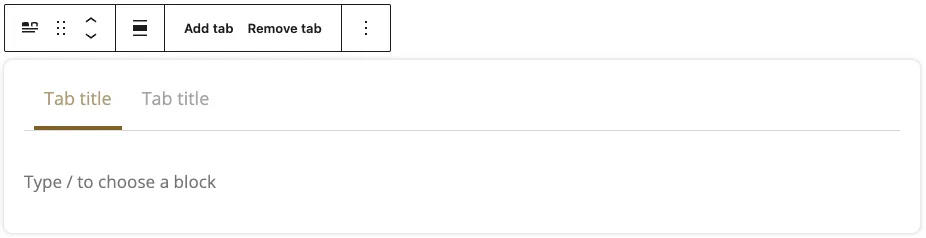
Each block has its own block-specific controls above in the editor that allow you to manipulate the block right in the editor. The Tabs Block offers the following options in its toolbar:
- Transform (convert to another content type)
- Mover Handle (six dots for grabbing and up and down arrows)
- Alignment Options (wide width and full width options are available)
- Add Tab/Remove Tab
- More options under the three dots
How the Tabs Block is structured
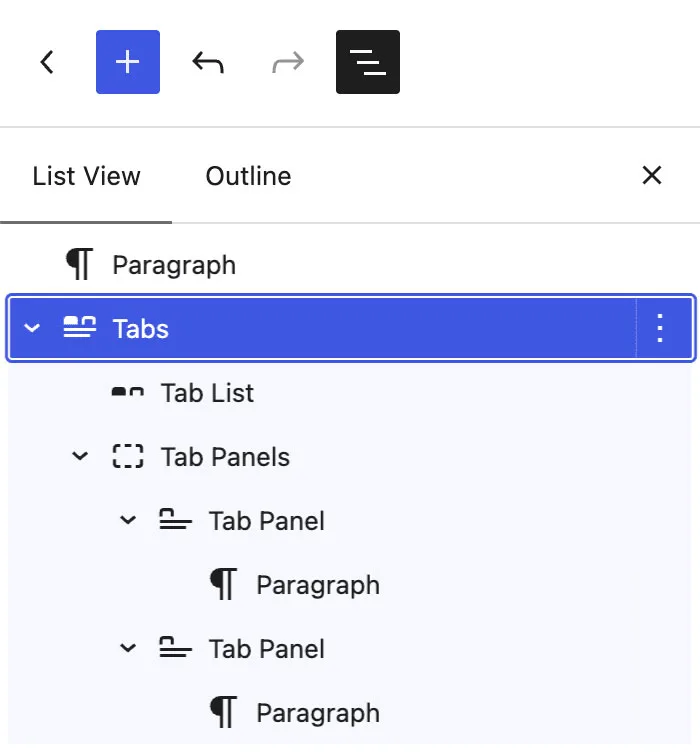
The Tabs Block is made up of several nested blocks that work together; each may have its own Block Options. Select the block in the List View (three lines in the top left of your screen), then the Settings will be available under “Block” in the right sidebar.
- Tabs: the outer block that holds everything together (Toolbar options above, Settings shown below).
- Tab List: the row of clickable tab buttons (in the Toolbar, you can reorder them with left and right arrows and justify orientation).
- Tab: each individual clickable button in the Tab List, one per tab.
- Tab Panels: the container that holds the content for every tab; most of the content blocks in this theme can be added inside.
- Tab Panel: the content area for one tab. Only the panel matching the currently selected tab is visible at a time (in the block settings, you can choose a different default block highlighted on page load).
- Tab List: the row of clickable tab buttons (in the Toolbar, you can reorder them with left and right arrows and justify orientation).
Block Settings
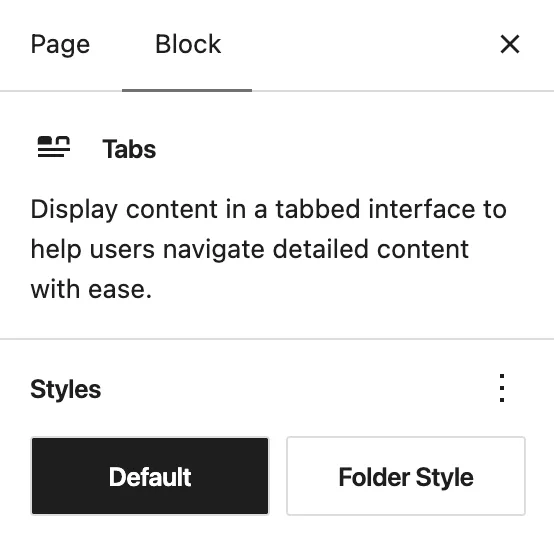
In the Block Settings of the parent you have the ability to choose between two block Styles, the “Default” and “Folder Style”, shown at the top of the page.