

Boards & Councils Roster
The Boards & Councils Roster Block provides a simple and secure way to display member information for boards and councils.
To use the Boards & Councils Roster Block, you must first request that it be activated on your site. Once it’s enabled, you can add it to any WordPress page by selecting Boards & Councils Roster from the list of available blocks.

In the right hand sidebar, a dropdown menu will list all available Boards and Councils. Select the appropriate one in the and save the page.
Block Settings
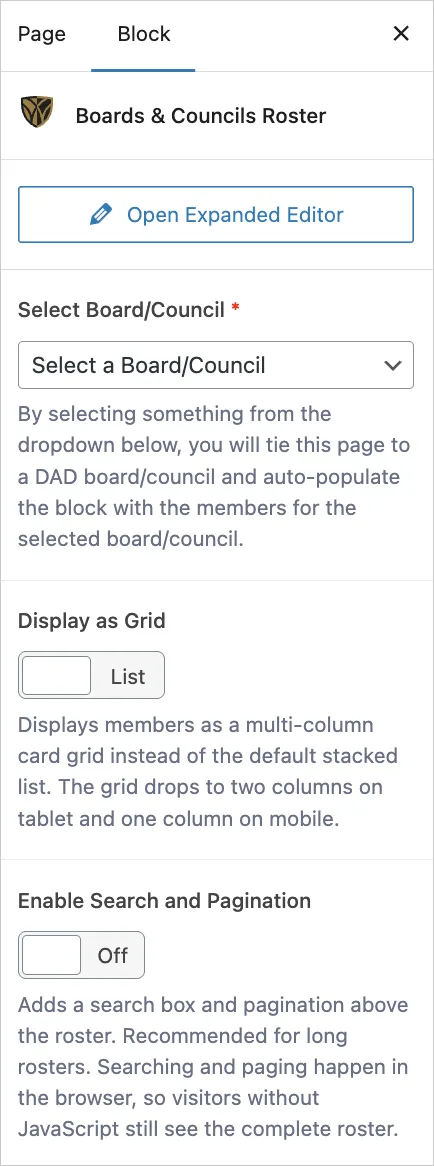
Expanded Editor
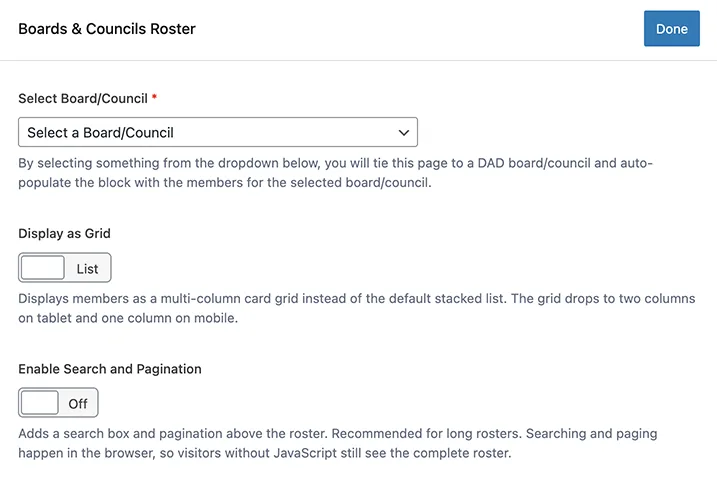
Block Settings
The block also offers three optional settings.
- Display as Grid: Displays members as a multi-column card grid instead of the default stacked list. The grid drops to two columns on tablet and one column on mobile. Off by default.
- Enable Search and Pagination: Adds a search box and pagination above the roster. Recommended for long rosters. Searching and paging happen in the browser, so visitors without JavaScript still see the complete roster. Off by default.
- Members Per Page: How many members to show on each page of the roster. Choose 10, 25, 50, or 100. Defaults to 25. This setting only appears when Enable Search and Pagination is turned on.
Public vs Private Display
By default, the block displays only minimal information about each board or council member: their name, location, and photo. Setting a password on the page (Page › Visibility › Password protected) reveals each member’s phone, email, job title, company, and leadership role.
To accommodate both public transparency and internal communication needs, it’s recommended to create two separate pages for each board or council: a public-facing page to show the basic roster information, and a password-protected private page accessible to members or others who require more detailed content.
Board and council members can update their personal information—including name, contact details, and photo—directly through WakeNetwork. The information displayed on the website is automatically synced and updated every hour to ensure accuracy and consistency.