

Gallery
The Gallery Block allows you to easily add multiple photos and automatically arrange them attractively. You can control the number of columns and the size of the images, and each image can link and have captions.
Detailed instructions on adding blocks can be found on Building a Page.


Block Toolbar
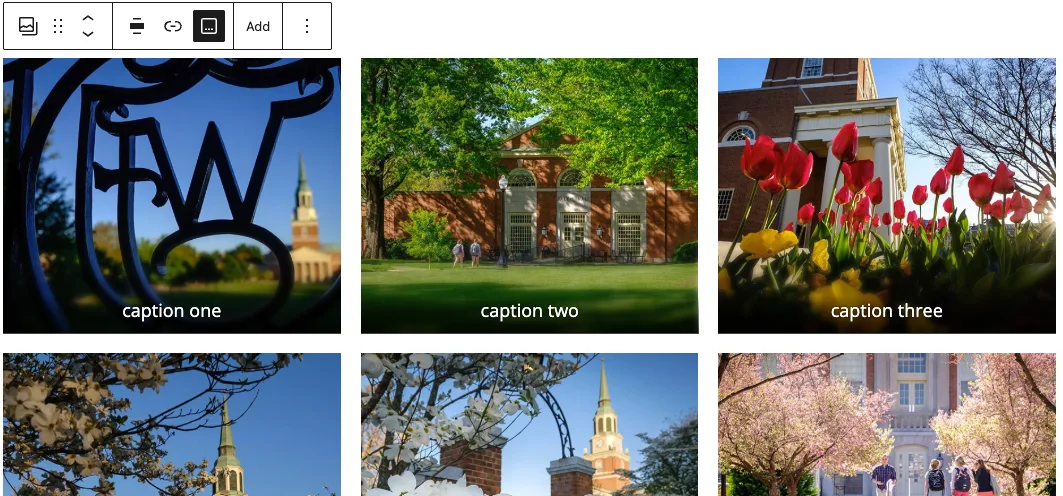
Each block has its own block-specific controls above in the editor that allow you to manipulate the block right in the editor. The Gallery Block offers the following options in its toolbar:
- Transform (convert to another content type)
- Mover Handle (six dots for grabbing and up and down arrows)
- Alignment Options (wide width and full width options are available)
- Link images to their Attachment Pages, Media Files (both open to an isolated image), or Enlarge on Click to open the Full Size image with a slideshow effect.
- Caption under the whole block
- Add more images to the Gallery
- More options under the three dots
Adding Images
When you add a Gallery Block, you’re given two options for the images: Upload and Media Library. More information about image sizing and types is available on our Photo Editing page.
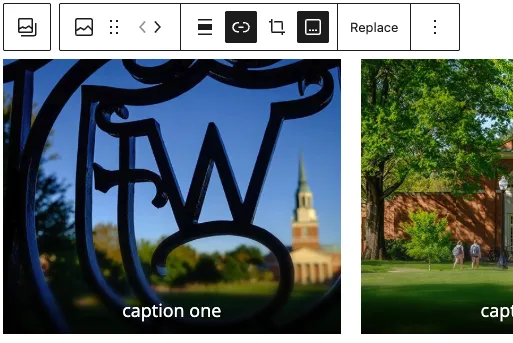
Individual image Toolbar options allow you to link, add captions, reorder and replace.
List View
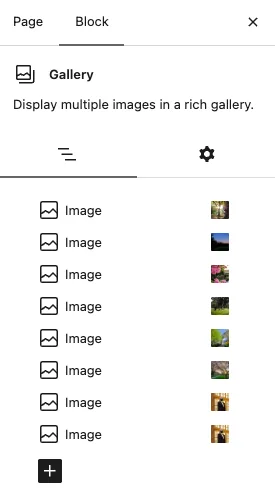
In the usual Block Settings area in the right sidebar, the Gallery Block lists the images grouped within for easy reordering, adding or removing images, and editing alt text.
Block Settings
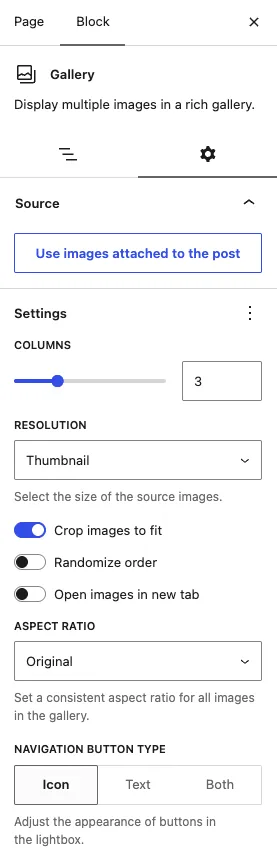
In the Settings tab you can control how the Gallery displays. Set these by selecting the Gallery; then they’ll be available under “Block” in the right sidebar.
Source
Select “Use images attached to this post” to create the gallery from images already uploaded to the page.
Columns
You can choose how many columns your Gallery will have. You can select between 1 column and 8 columns. Your remaining images will automatically arrange themselves to fill the space, no matter how many columns you select.
Resolution
When you upload your images, we go ahead and generate several additional sizes in case you’d like to avoid photo editing altogether. If you have taken the time to edit your photos, choose Full Size. If you uploaded a sufficiently large image but it still looks fuzzy, check to see if you aren’t using a smaller size than you intended. Also, if your image is smaller than one of the generated sizes, the larger version won’t be created.
Thumbnail: 300px x 300px square
Medium: 600px on the long side
Large: 2000px on the long side
Full Size: Your original uploaded image
Crop to Fit
You can select whether or not you’d like your images to be cropped in your Gallery. This option is useful if you have images of varying sizes and shapes. Cropping them will make the images in each row of the gallery the same size.
Navigation Button Type
The Gallery Block includes an Enlarge on click option that lets visitors open images full screen and move through the gallery using next and previous controls. In the Block Settings, you can choose whether those navigation controls display as icons, text, or both.
This creates a simple slideshow that visitors control themselves. Be sure each image has appropriate alt text, since the enlarged image may be viewed without the surrounding page content.